The Hidden Tax on Creator Time
The most common reason knowledge creators stall isn't lack of expertise—it's operational overhead. Scheduling back-and-forths, chasing payments, tracking who's interested in which offering, manually updating availability, exporting earnings for tax season.
These tasks don't require your expertise. They require a system. Qynko Studio is that system.
Here's how each piece of the platform automates the operational side of your creator business.
What operational tasks take the most time away from knowledge creators every week?
The biggest time drains are: manually coordinating session schedules with clients, chasing payment confirmations, sending individual reminder messages before calls, updating availability across channels, and reconciling revenue from multiple services at the end of each month. Qynko Studio automates all of these so creators can focus on delivering their service rather than managing the business around it.
How does Qynko Studio reduce administrative overhead for coaches and creators?
Qynko Studio replaces manual coordination with automated systems: the Availability module eliminates back-and-forth scheduling, the Bookings dashboard replaces individual session tracking, automated confirmation and reminder notifications replace manual messages, and the Payouts module replaces revenue spreadsheets. Together, they cut the operational work that typically adds 5–10 hours per week of admin to a solo creator's schedule.
Availability Management — Set It Once, Run Automatically
The most tedious part of offering 1:1 sessions is communicating your schedule. Qynko Studio's Availability system replaces the calendar back-and-forth entirely.
In Settings → Availability, define your weekly schedule: which days you're available and what time windows you accept bookings. Clients see only your open slots when they visit your profile—they book directly, the session lands in your Bookings dashboard, and you get notified.
- Set multiple time slots per week (e.g., Mon–Fri 9am–12pm and 3pm–6pm)
- Slots apply across all your 1:1 services automatically
- No manual approval needed — confirmed bookings appear instantly
- Update availability anytime from the sidebar Settings → Availability
The result: your calendar fills on its own, without a single scheduling email.
How does Availability Management work in Qynko Studio?
Navigate to Settings → Availability and define your weekly schedule by day and time. Once saved, clients who visit your profile can only see and book the open slots you have defined — no double bookings, no manual approval required. Your availability automatically applies across all 1:1 session services. You can update or block specific slots at any time without rebuilding the full schedule.
Can clients book sessions automatically without me confirming each one on Qynko Studio?
Yes. When a client books a 1:1 session on Qynko Studio, the booking is confirmed automatically once payment is complete. You do not need to manually approve or confirm anything. The session appears in your Bookings dashboard immediately, and both you and the client receive an automatic confirmation notification. Pre-session reminders are also sent automatically.
Bookings Dashboard — Your Session Pipeline at a Glance
Every confirmed session, enrollment, and event registration across all service types flows into the Bookings dashboard. This is your single source of truth for what's happening in your creator business.
Filter by service type, date, or status. See upcoming sessions, past completions, and cancellations. For 1:1 sessions, client details and the booked time are visible in advance so you can prepare.
No Manual Reminders Required
Qynko Studio sends automated confirmations to clients at booking time and reminders before the session. You don't manage this—it happens in the background.
Your job is to show up prepared. The platform handles everything else.
What does the Bookings dashboard in Qynko Studio show?
The Bookings dashboard shows all confirmed sessions, course enrollments, and event registrations in a single view — across all your service types. You can filter by service type, date range, or booking status. Each booking entry shows the client details, session time, and payment status. This replaces the need for a separate CRM or calendar for tracking your client pipeline.
Does Qynko Studio send automatic reminders to clients before their session?
Yes. Once a session is booked, Qynko Studio automatically sends confirmation and reminder notifications to the client. You do not need to send individual messages or use a separate scheduling tool. The automated reminder system ensures clients show up prepared, reducing no-shows without any manual effort on your part.
Leads — Convert Interest Into Revenue
Not every visitor to your profile converts immediately. The Leads module captures contacts who engaged with your services but haven't yet booked or enrolled.
Use leads to:
- Identify which services are generating interest but not converting — a signal to review pricing or description
- Follow up with high-intent prospects directly
- Spot patterns: if the same subcategory generates leads repeatedly, it's a signal to create a lower-barrier entry point (like a free community or discounted webinar)
The Leads dashboard turns passive interest into an actionable pipeline. Most creators ignore this step—it's where the biggest conversion gains hide.
What is the Leads feature in Qynko Studio and how does it work?
Leads captures contacts who showed interest in your services — visited a service page, started checkout, or submitted a query — but did not complete a booking or enrollment. The Leads tab in your dashboard surfaces these high-intent prospects with their contact details so you can follow up directly. Leads that go un-followed tend to convert at a much higher rate than cold outreach because the interest is already established.
How should I use Leads data to improve my service conversions on Qynko Studio?
Look at which services are generating the most leads without converting. A high lead count with low bookings usually signals a mismatch between the service description and audience expectations, a price point that creates hesitation, or a missing trust element (like reviews or a clearer outcome statement). The Leads tab also shows repeated interest in similar subcategories — a strong signal to create a lower-barrier entry point like a free community or a discounted introductory webinar.
Payouts — Automated Earnings Tracking
Every service transaction is tracked in the Payouts module. Revenue from sessions, course enrollments, webinar registrations, and community subscriptions aggregates into a single earnings view.
Filter by service type or date range to understand which formats are driving the most revenue. Request withdrawals on your schedule—funds transfer directly to your linked bank account.
No spreadsheets. No manual reconciliation. The platform tracks every rupee so your financial picture is always current.
How do I withdraw my earnings from Qynko Studio?
Navigate to the Payouts section in your Qynko Studio sidebar. All earnings from courses, 1:1 sessions, webinars, and communities are aggregated there. Filter by service type or date range to review your breakdown, then initiate a withdrawal to your linked bank account. The payout system uses Razorpay for secure transfers — no manual invoicing or third-party reconciliation required.
Does Qynko Studio automatically track revenue from all service types in one place?
Yes. The Payouts module consolidates earnings from every service you run — regardless of whether income came from a course enrollment, a 1:1 session booking, a webinar registration, or a community subscription. You see the total and the per-service breakdown in one dashboard, filterable by date. This eliminates the need for spreadsheets to reconcile your creator business revenue.
Closing the Loop: AI Tools + Operational Automation
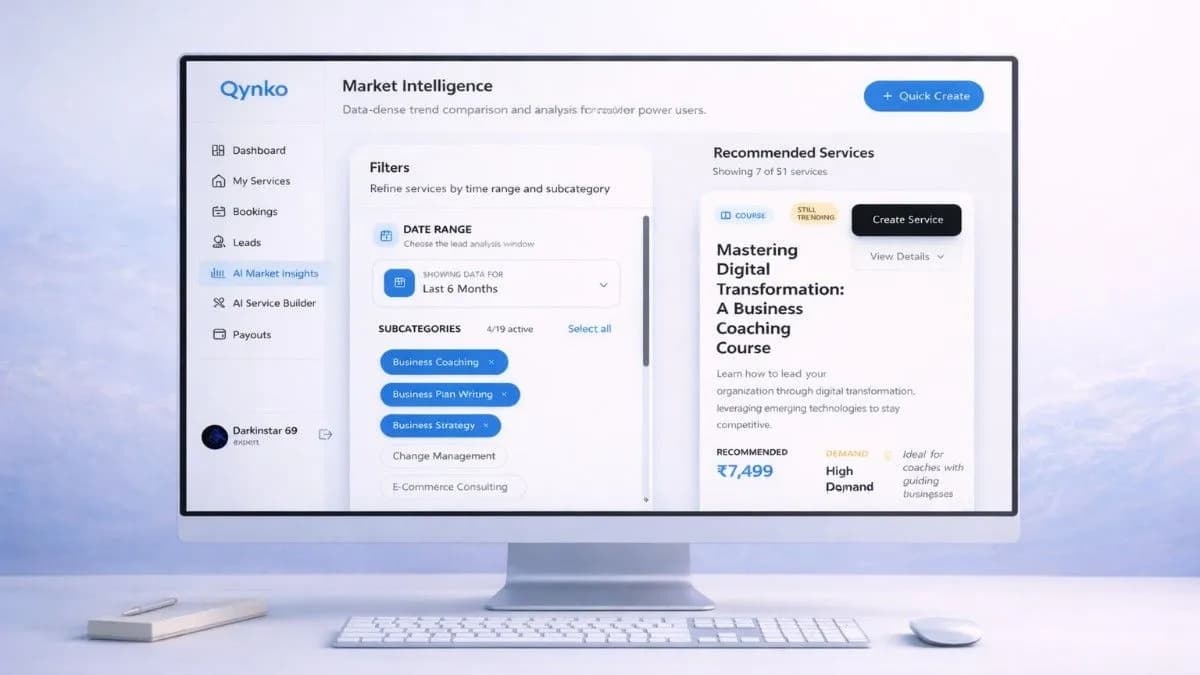
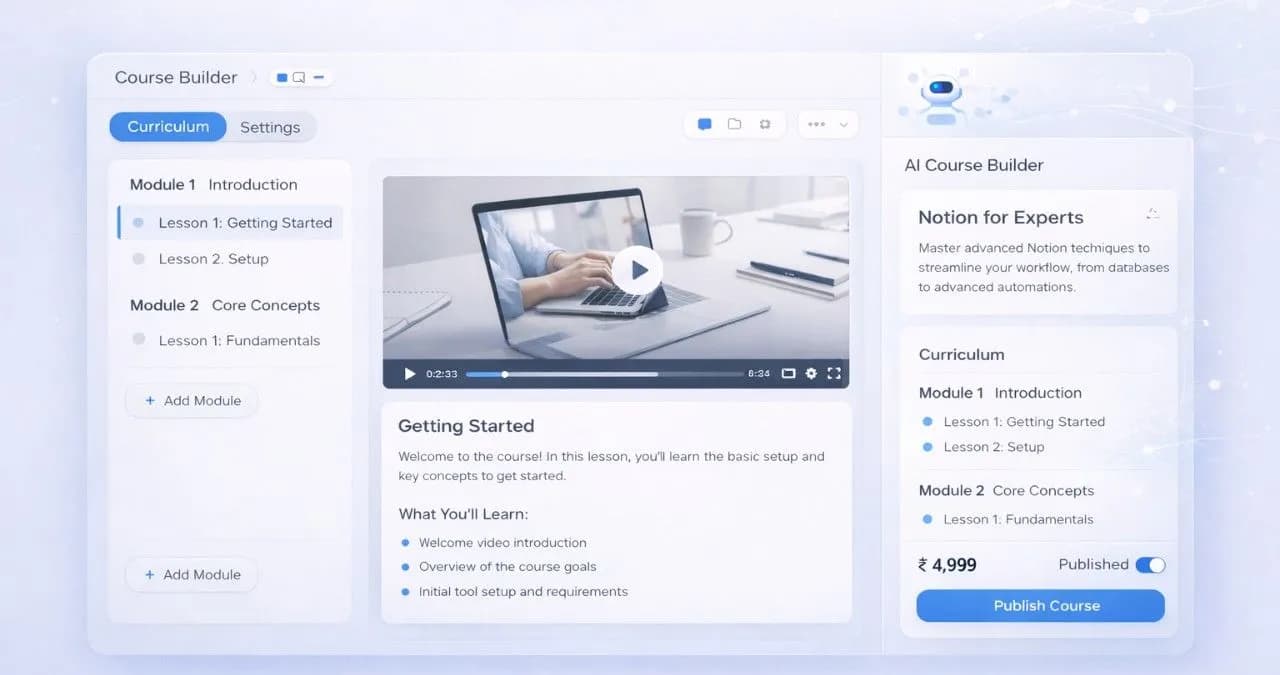
The full Qynko Studio workflow looks like this: AI Market Insights tells you what to build → AI Service Builder helps you build it → Availability + Bookings fills your calendar automatically → Leads shows you conversion gaps → Payouts tracks the revenue.
Each module connects to the next. The result isn't just a collection of tools—it's a complete operating system for a knowledge business.
The creators earning consistently on Qynko Studio aren't working harder than their peers. They're working inside a better system.
What is the complete creator workflow in Qynko Studio from idea to payout?
The full workflow is: (1) AI Market Insights identifies what to build based on current demand in your niche. (2) AI Service Builder generates your service title, description, curriculum, and price point. (3) Availability Management sets your bookable slots. (4) Bookings captures enrollments and sessions automatically. (5) Leads surfaces interested contacts who have not converted yet. (6) Payouts consolidates all revenue and sends it to your bank. Each module feeds the next — Qynko Studio functions as an operating system for your knowledge business, not just a publishing tool.