Why Courses Are the Highest-Leverage Service Format
A 1:1 session trades your time for money—one hour, one client, one payment. A course trades your knowledge for money: record once, sell indefinitely, to an unlimited number of students.
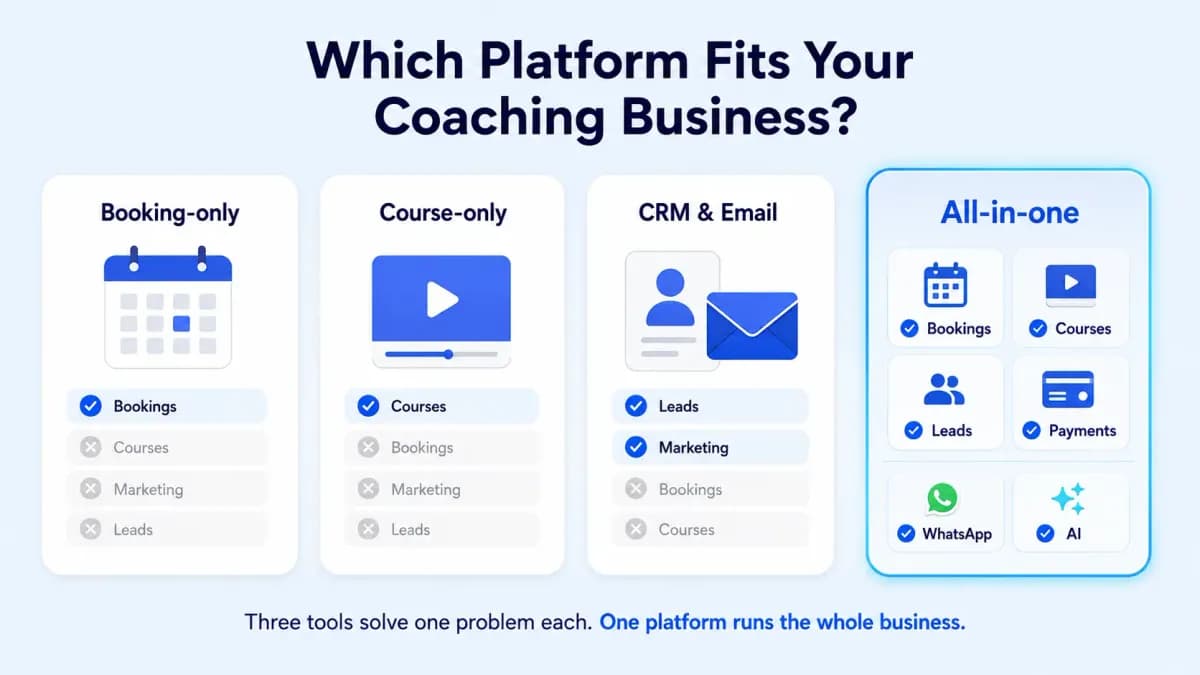
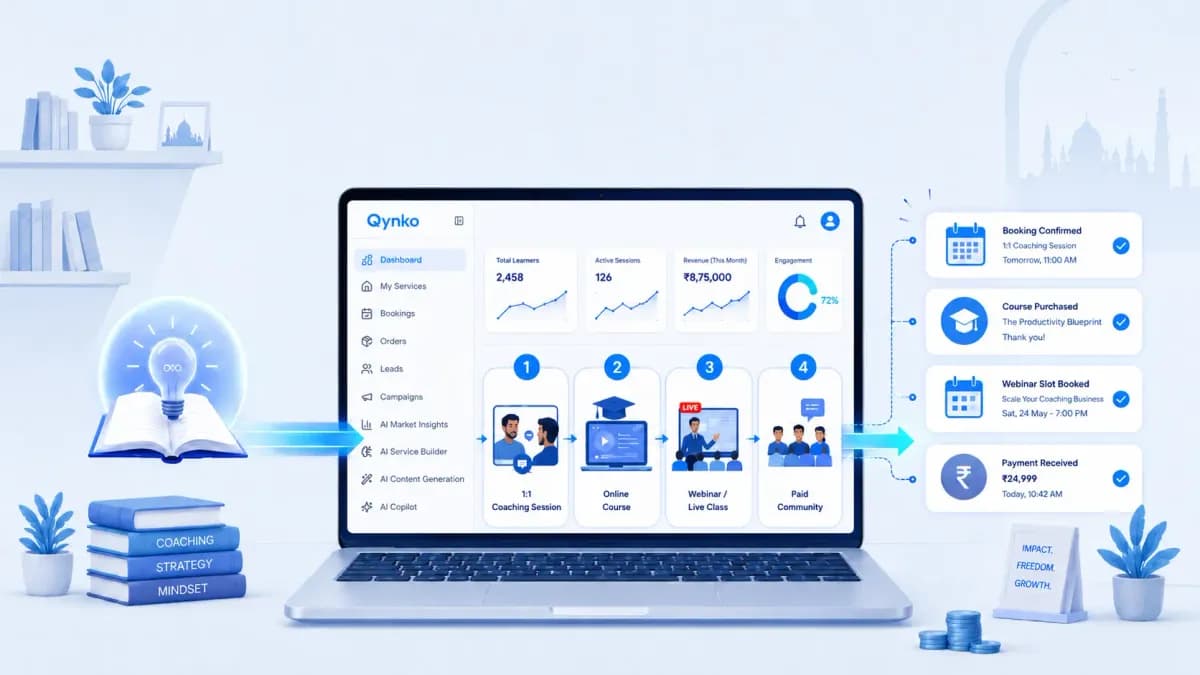
For knowledge creators who want to scale beyond their available hours, courses are the most powerful service type in Qynko Studio's catalog. Combined with the platform's AI tools, you can go from concept to published course faster than any traditional course platform allows.
What is the difference between a 1:1 coaching session and an online course on Qynko Studio?
A 1:1 session trades your time for money — you are paid once and the slot is consumed. A course is built once and sold indefinitely to any number of students without additional time from you. Qynko Studio supports both formats, but courses are the highest-leverage offering for creators who want to scale their income beyond the hours in their week.
Why are online courses the highest-leverage service format for knowledge creators?
Unlike 1:1 sessions, a course has no capacity ceiling. Once recorded, it generates revenue every time a new student enrolls — while you sleep, while you are on holiday, while you are building your next service. Qynko Studio's course builder lets you structure video lessons, text modules, and attachments, then publish to your public creator profile where any number of students can enroll and pay without requiring your involvement in each sale.
Step 1: Start With Market Insights, Not Assumptions
Before opening the course builder, visit the AI Market Insights tab. Filter by Course format and your primary subcategory to see which topics are generating real demand in your niche.
This step takes five minutes and saves you from building a course nobody searches for. Pick a topic where your expertise intersects with a subcategory showing consistent signal over the last 30–90 days.
Step 2: Use the AI Service Builder to Draft the Course
Open AI Service Builder from the sidebar. Describe your course concept in plain language—what you teach, who it's for, what outcome students get.
The AI returns a suggested course title, a compelling description, a module-by-module curriculum outline, and a recommended price point. Edit freely—these are starting points, not constraints.
Copy the curriculum outline into your preferred recording workflow.
How do I use AI Market Insights to choose the right course topic on Qynko Studio?
Open the AI Market Insights tab and filter recommendations by the Course format tag. Set your preferred date range (30 days is a good default) and deselect subcategories that fall outside your expertise. The recommendations that remain show you which course topics have measurable demand in your niche right now. Pick the one with the highest overlap between market demand and your existing knowledge.
What does the AI Service Builder generate when I start a course on Qynko Studio?
The AI Service Builder generates a suggested course title, a description written for your target audience, a full curriculum outline with section and lesson names, and a recommended price point — all from a single prompt describing your course concept. This gives you a complete starting structure in seconds instead of staring at a blank course creation form.
Step 3: Build the Course in My Store
Navigate to My Store → Courses and click Quick Create → Course. The creation flow walks you through:
- Course Details — Title, description, thumbnail image, and category. Use the AI-generated title and description as your baseline.
- Curriculum — Add sections and lessons. Each lesson supports video uploads, text content, and attachments.
- Pricing — Set a one-time price, a free tier, or a bundle option. The AI Service Builder's price suggestion accounts for your niche's typical willingness to pay.
- Publish Settings — Choose draft (private) or published (visible on your creator profile page).
Your course lives on your Qynko Studio profile page—a public-facing storefront where students can browse, preview, and enroll directly.
How do I create a new course on Qynko Studio step by step?
Navigate to My Store in your Qynko Studio dashboard, select Courses, and click Quick Create. You will be prompted to fill in course details (title, description, thumbnail), build your curriculum (add sections and lessons with video, text, or file attachments), set your pricing model (one-time payment, free, or bundle), and configure publish settings. Once published, your course appears live on your public creator profile.
What pricing options are available for courses on Qynko Studio?
Qynko Studio supports three pricing models for courses: a one-time payment (students pay once for lifetime access), a free tier (no charge, useful for lead generation or introductory content), and bundle pricing (group multiple services together). All pricing is in INR and payments are processed through the integrated Razorpay gateway with direct payouts to your linked bank account.
Step 4: After You Publish
Publishing is not the finish line—it's the starting line. Once live, your course appears in your My Store dashboard with enrollment counts, revenue figures, and status controls (Active, Paused, Unpublished).
Monitoring Leads and Enrollments
New enrollments appear in the Bookings section. The Leads tab shows contacts who expressed interest but haven't enrolled—a signal to follow up or adjust your pricing.
Use this data loop: Insights → Build → Publish → Monitor → Refine. Each cycle makes your next course sharper and faster to produce.
How do I track course enrollments and revenue after publishing on Qynko Studio?
After publishing, your course appears in the My Store dashboard with live enrollment counts, revenue totals, and status controls. You can pause or unpublish the course at any time. The Payouts module shows all course revenue broken down by service, and you can filter by date range to see performance over specific periods.
What are Leads in Qynko Studio and how should I use them?
Leads are contacts who engaged with your service — viewed your course, started checkout, or submitted a query — but did not complete enrollment. The Leads tab in your dashboard surfaces these high-intent prospects so you can follow up personally. If you notice a specific course generating many leads but few enrollments, it is a signal to revisit your pricing, description, or the course thumbnail.
Tips From High-Performing Studio Creators
Creators who consistently sell courses on Qynko Studio share a few common habits:
- Keep the first course narrow: A course titled 'Python for Beginners' competes with everything. A course titled 'Python for Excel Users Who Hate Macros' finds its audience immediately.
- Price intentionally: Free courses build your audience. Paid courses filter for committed students. Both have a place in a healthy catalog.
- Pair with a 1:1 Session: List a 1:1 session alongside your course for students who want personalized help. This doubles your revenue per student.
- Update beats recreating: Refresh course content quarterly rather than building a new course from scratch. Existing students stay happy; new students see a current product.
Qynko Studio is built for creators who treat their knowledge as a business. The tools are there—the expertise is yours.
What is the best pricing strategy for a first online course?
Keep your first course narrow in scope and price it to reflect the specific outcome it delivers — not the hours of content inside. A focused ₹1,499 course solving one concrete problem will outsell a sprawling ₹499 course every time. If you are unsure, Qynko Studio's AI Service Builder suggests a market-aligned price point based on demand data in your subcategory. You can always raise the price after your first student reviews come in.
How often should I update my course content on Qynko Studio?
High-performing creators on Qynko review and refresh their course content quarterly — not from scratch, but by updating individual lessons that have become outdated, adding new modules based on student questions, and adjusting the curriculum based on completion data. Rather than rebuilding the entire course, targeted updates keep content relevant while preserving your enrollment history and reviews.